
.svg)


How to Connect Your Outlook On-Premises Account to OmniServe
Learn how to connect an on-premises Outlook (Exchange) account to OmniServe and manage customer emails from the unified inbox. Covers setup requirements, step-by-step connection, and how to reconnect or remove an account.
OmniServe now supports direct integration with on-premises Outlook (Exchange) accounts hosted on your organization's local server. This integration allows you to manage customer emails directly from the OmniServe unified inbox while keeping all data within your organization's infrastructure.
What You Can Do
- Connect an on-premises Outlook account without relying on third-party email services
- Access all incoming emails in the OmniServe unified inbox
- Reply to customer emails directly from OmniServe
- Route emails to the appropriate teams using OmniServe workflows
- Maintain full data residency and security compliance
Before You Start
You will need the following information to complete the setup:
- Your Outlook email address
- Your Outlook password
- Your Exchange server URL or hostname (provided by your IT administrator)
- The authentication type your Exchange server uses: Basic or NTLM (confirm with your IT team)
Note: This integration applies only to on-premises Exchange servers.
Exchange Online (Microsoft 365) is not supported at this time.
Step by Step
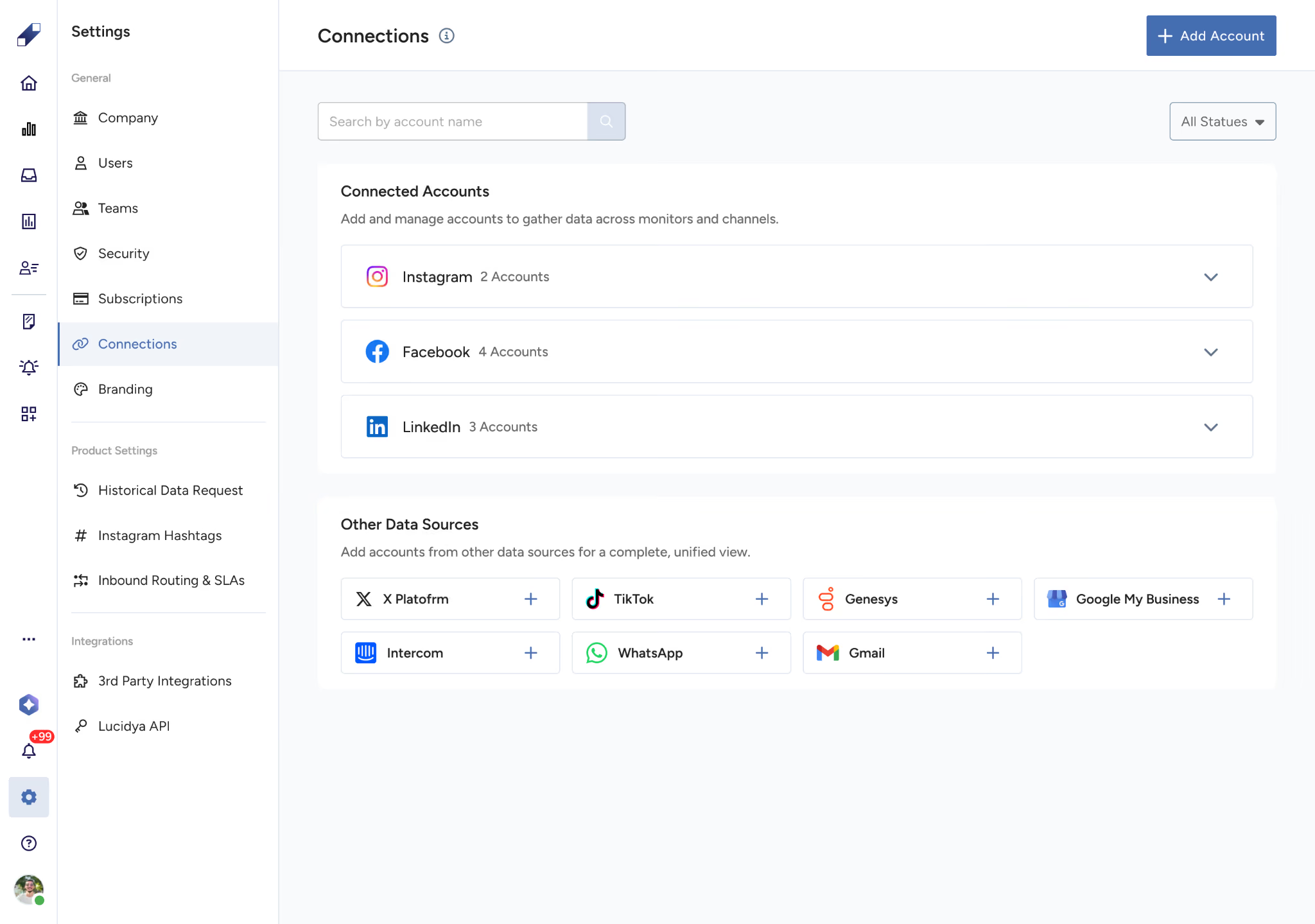
Step 1 - Navigate to Connections
Go to Settings → Connections → Add Account.
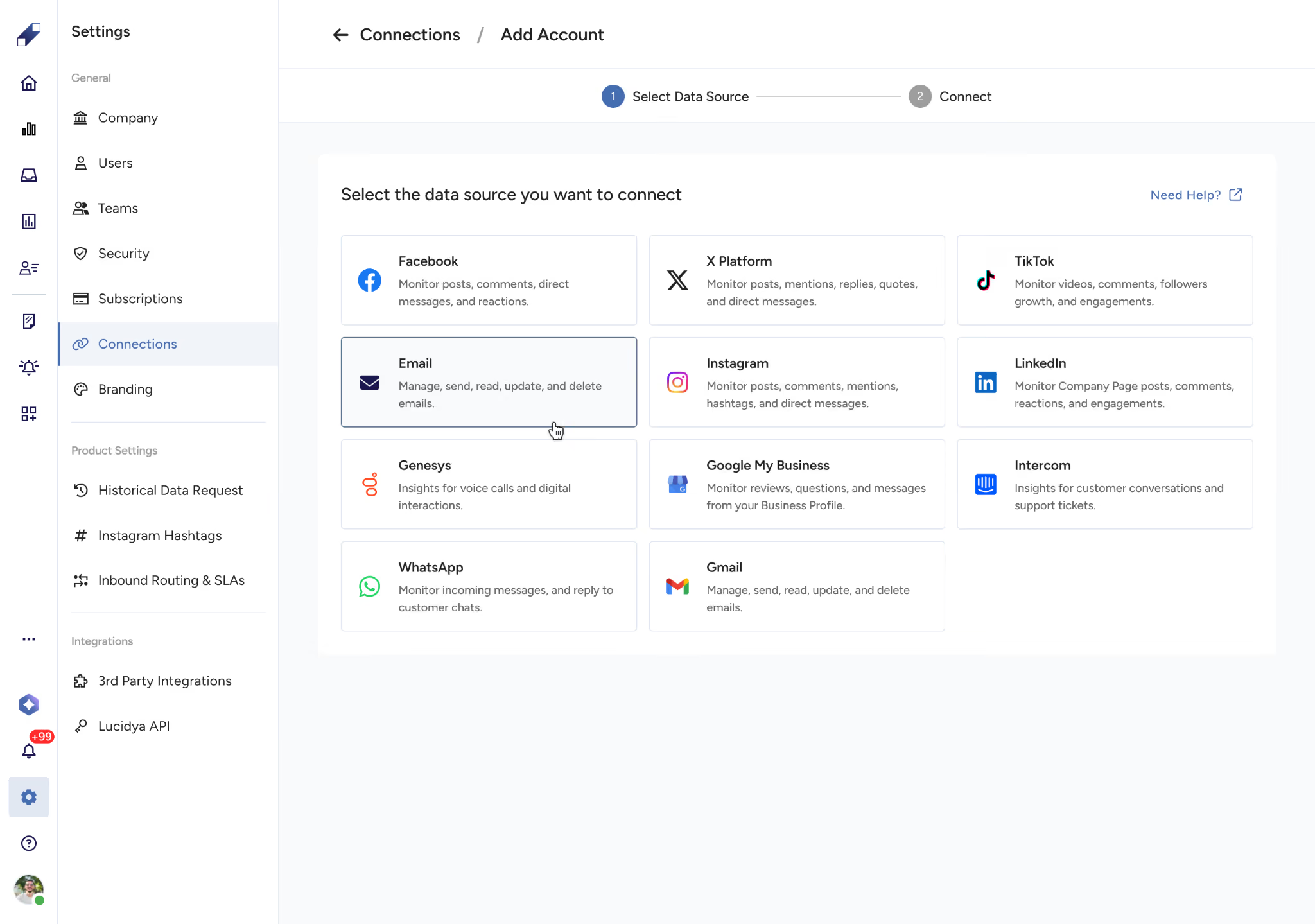
Step 2 - Select Email as the Data Source
From the "Select Data Source" page, click the Email option. You will see two connection methods.
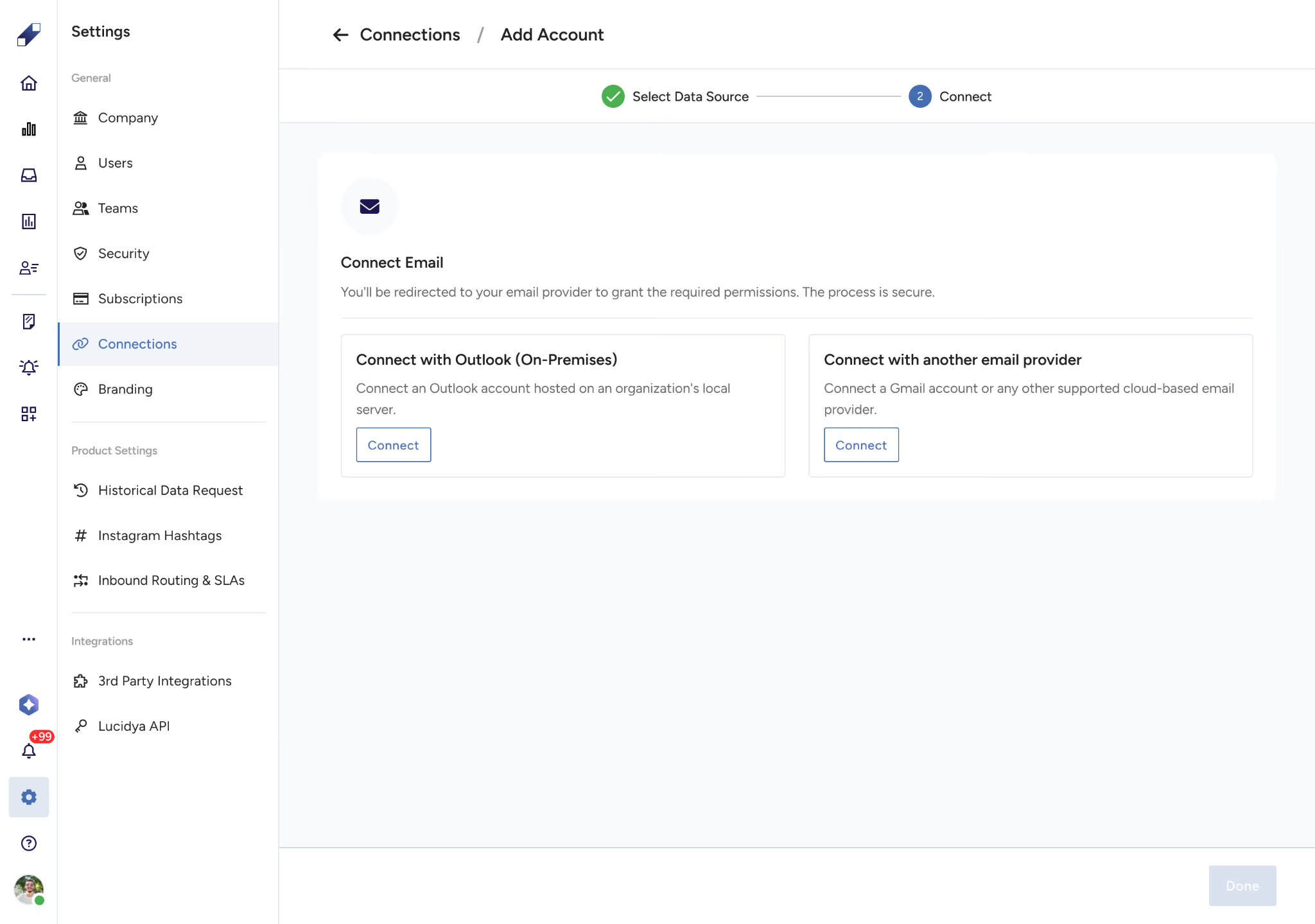
Step 3 - Click Connect for Outlook On-Premises
On the "Connect Email" page, under "Connect with Outlook (On-Premises)," click the Connect button. This will open the authentication modal.
Step 4 - Enter Your Email Address
In the Email field, enter your full Outlook email address (for example, user@company.com).
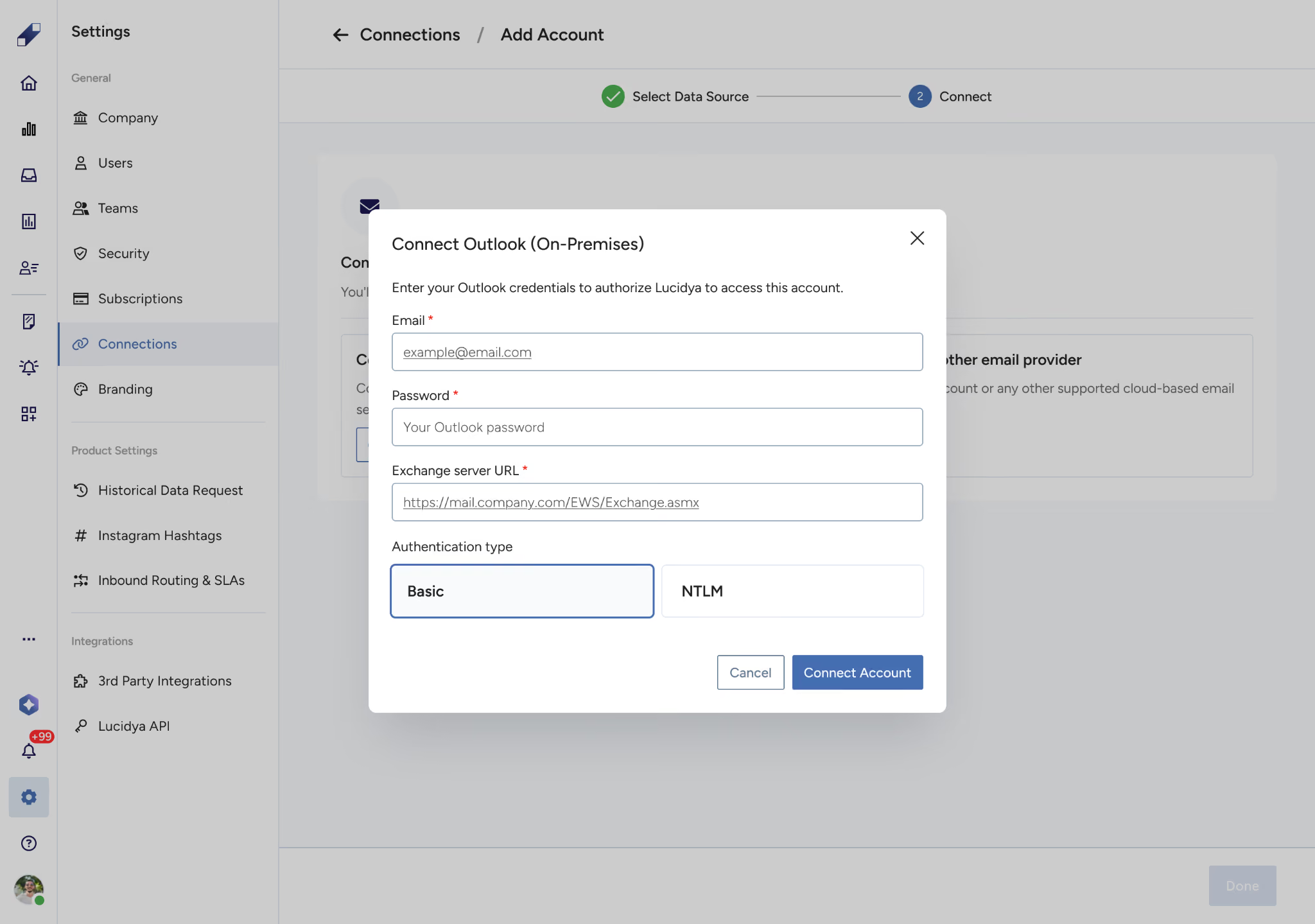
The field accepts up to 254 characters and must follow a valid email format.
Step 5 - Enter Your Password
In the Password field, enter your Outlook password. The password field is masked by default. Click the eye icon to reveal the password if needed. Passwords must be between 8 and 128 characters.
Step 6 - Enter Your Exchange Server URL
In the Exchange server URL field, enter the full URL or hostname of your Exchange server. This might look like mail.company.com or https://mail.company.com/EWS/Exchange.asmx. Ask your IT administrator if you are unsure of the correct URL. The field accepts up to 2048 characters and cannot contain spaces.
Step 7 - Select Your Authentication Type
Under "Authentication type," select either Basic or NTLM based on your Exchange server configuration. Basic is selected by default. Confirm the correct type with your IT administrator.
Step 8 - Click Connect Account
Once all fields are filled in correctly, click the Connect Account button. The system will validate your credentials and connect to your Exchange server. If the connection succeeds, you will be redirected to the next setup step. If validation fails, an error message will appear. Review the error, correct the issue, and try again.
Step 9 - Complete the Setup
After successful authentication, follow the on-screen prompts to finish adding your account. Your Outlook emails will now appear in the OmniServe unified inbox.
Managing Your Outlook Connection
Viewing Your Connected Account
Once connected, your Outlook account will appear in the Connected Accounts section on the Connections page, listed under Email. You can view the connection status and account details here.
Reconnecting Your Account
If your password changes or the connection drops, click the three-dot menu next to your account and select Reconnect. Enter your updated credentials using the same authentication modal and resubmit.
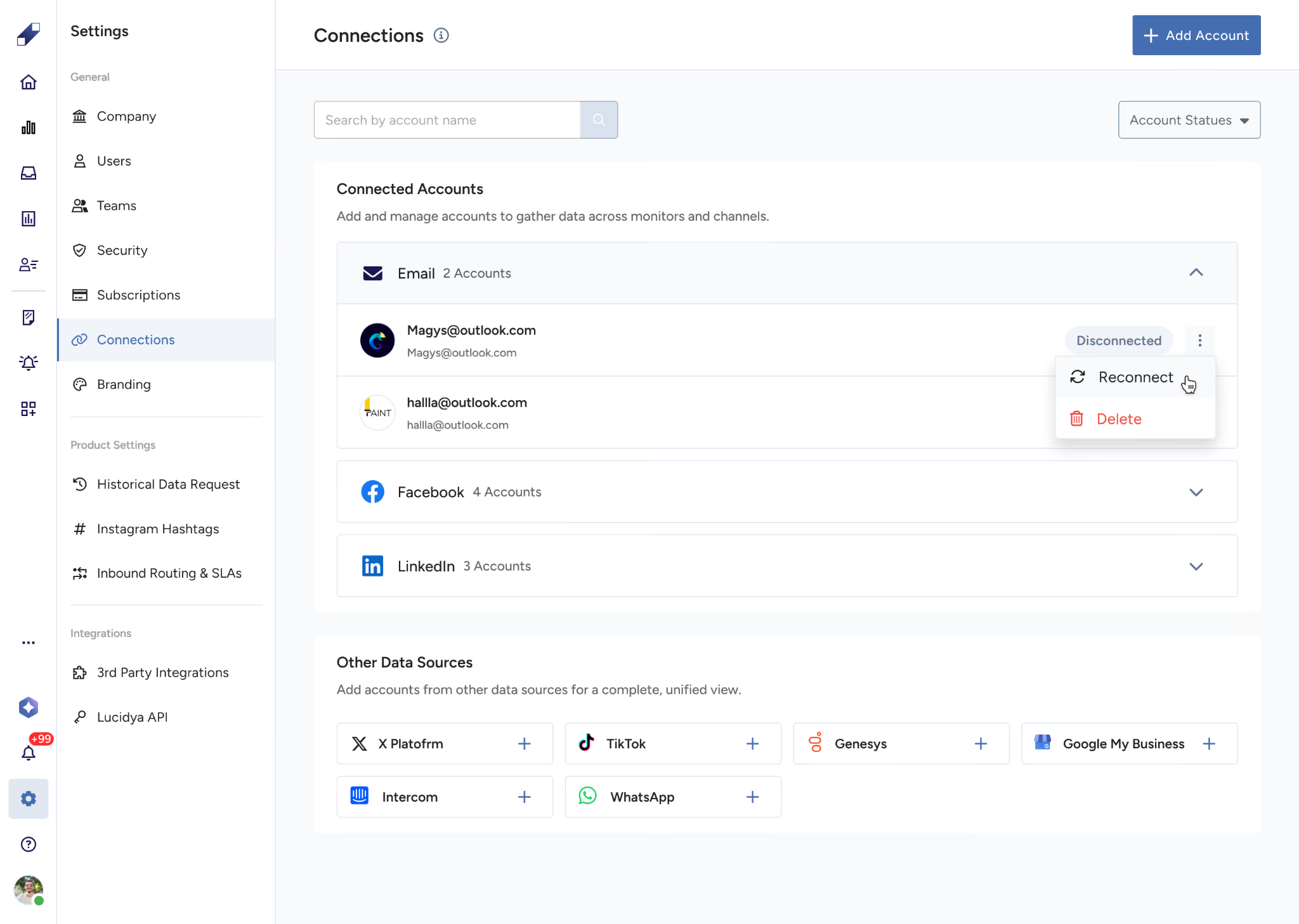
Removing Your Account
To disconnect your Outlook account, click the three-dot menu next to the account name and select Delete. This will remove the account and stop fetching emails from this mailbox.
For further assistance contact Lucidya Support.
Frequently asked questions
The system will display an error message: "Unable to connect to the Exchange server. Please verify the server URL and try again." Check with your IT administrator to confirm the correct URL and resubmit.
Yes, you can connect the same email account in different OmniServe instances. Each connection is independent and can be managed separately from the Connections page.
No. This integration connects directly to your on-premises Exchange server and does not route your credentials through any third-party service. All authentication happens securely between OmniServe and your Exchange server.
Verify that your password has not changed and that your Exchange server is reachable. If your password has changed, use the Reconnect option to update your credentials. If the server is unreachable, contact your IT administrator to ensure the Exchange server is running.